Code Writer: from a blank chart to your first row


Design Crochet can turn stitch codes into diagrams, but knowing what you want to make and knowing how to write the code are two different skills.
Code Writer closes that gap.
Instead of memorizing syntax, you choose stitches and configure them in the workspace. Code Writer assembles the draft line for you. You can test it on the live chart, see whether it creates what you intended, and revise it before anything is saved.
If you already use Design Crochet, this is the workspace-friendly way to explore techniques that previously required writing code by hand. If you are new, the path is simple: choose, add, test, then create.
What Code Writer is
Code Writer is a visual way to build a row inside Code Studio. You choose stitches, see how they fit together, and watch the row take shape on the chart.
You do not need to be comfortable with stitch codes or chart symbols before you begin. The stitch names, controls, and live preview help you connect the crochet you know with the symbols on the chart. That makes Code Writer useful for learning symbols as well as designing with them.
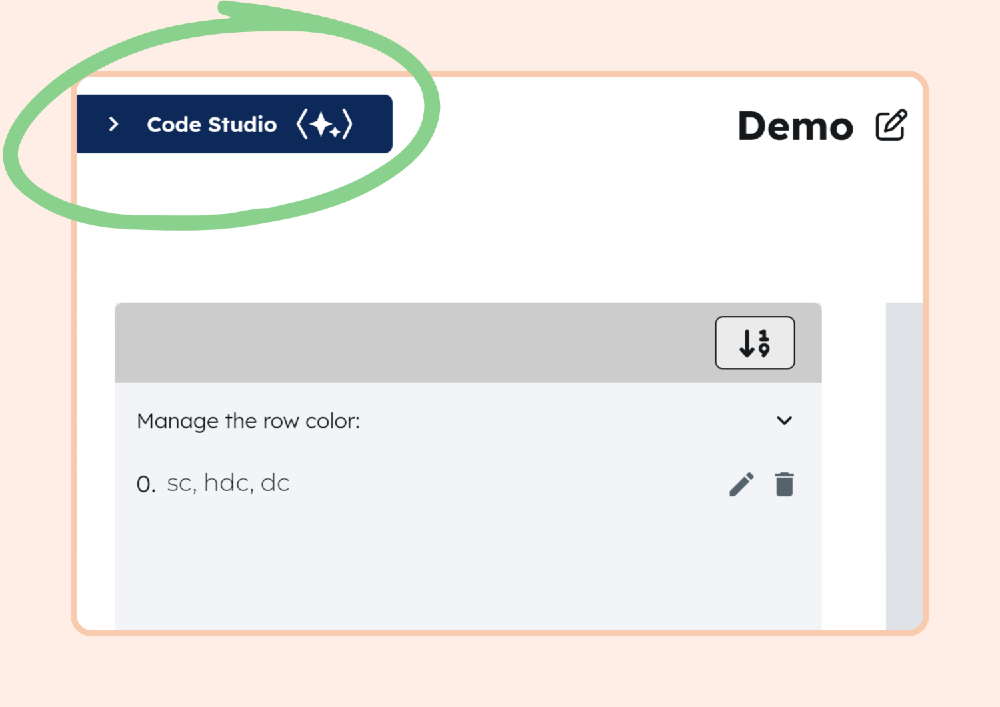
Code Writer works next to a live chart preview and is available on desktop and larger screens. To find it, open a workspace project, open the Code Studio side panel, and choose Code Writer.
Test as many ideas as you want. The preview will not change your pattern until you decide to save it. This is your space to explore, learn, and see what is possible.
Get your first row on the chart
The fastest way to understand Code Writer is to test the example. Open Code Writer and choose Try the example from the welcome message, or open Help and follow the example there.
You will build:
[sc, hdc, hdc, fpdc] ×3
On Your line, this appears as sc, hdc.2, and fpdc, wrapped as a group three times.
This short video shows the complete build:
Codewriter demo
Select Test on chart and watch the row appear in the chart preview. That is your first success. You have translated a stitch idea into a diagram without writing the code yourself.
If you like the result, you can save it as a new row or add it to the row you are already building. If not, keep changing the draft and testing again. Your pattern stays untouched until you choose to save.
Once you have tested the example, try the same process with a stitch or technique you want to explore. Pick something familiar, follow the visuals, and let the chart show you what the code means.
Where to go for help
| Place | What you get |
|---|---|
| Help in Code Writer (top right, ?) | Short in-tool help, screenshots, the example, link to the full guide, example video |
| User Guide → Code Studio | Full tutorial, including an interactive look at every tool in Writer |
| User Guide hub | Other Design Crochet guides. Code Studio is listed with the other topics |
The User Guide includes an interactive explanation of every tool available inside Code Writer. This post gets you to the chart. The guide is where to go when you want to understand every option.
Try it
Open a workspace on desktop or tablet. Select Code Studio, then open Code Writer to explore the Code Writer workspace. Start with the Help screen, where you’ll find a link to a detailed tutorial in the User Guide.
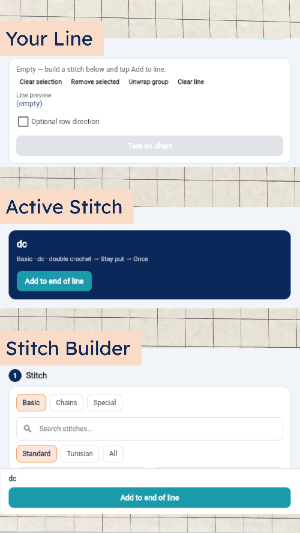
At a glance, Code Writer has three main sections:
- Stitch Builder: Add stitches to your row and build your code.
- Active Stitch: See the stitch you’re currently configuring and add it to your line.
- Your Line: Test your code and see the resulting chart as you build.
As you work, move between these sections to build a row, test the structure, and refine your code.
If you are new, you will see that you can create a diagram without learning the syntax first.
If you already use Design Crochet, you will see the missing bridge between the techniques you want to explore and the codes that power the chart.
When you are ready to go further, open Help in the Code Writer toolbar or visit the User Guide for a full walkthrough.
Feature Spotlight · Code Writer in Code Studio